ArcGen/SchleiferEngine
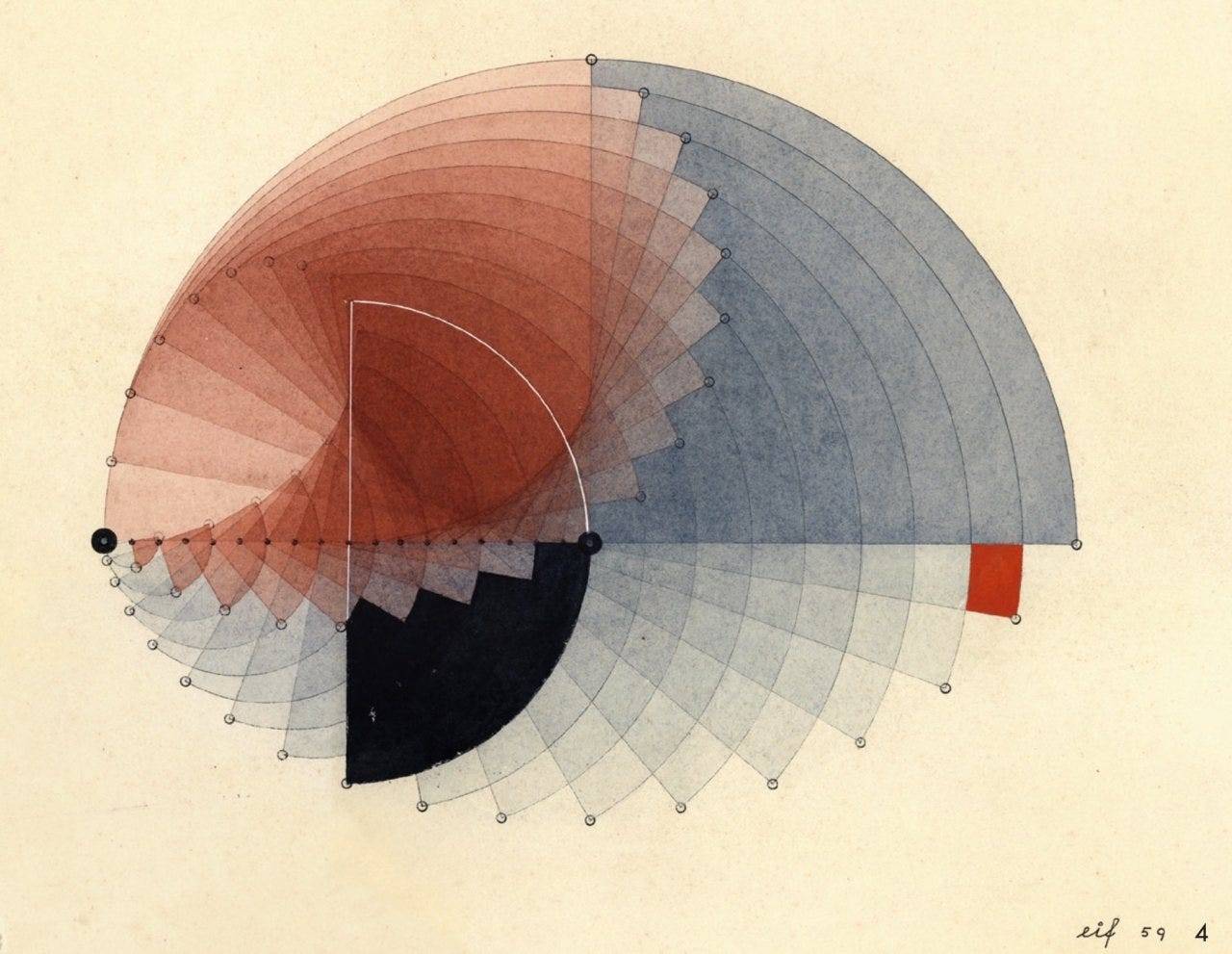
Inspired by a colour study by Bauhaus artist, Fritz Schleifer, an attempt to recreate it using html and javascript quickly succumbed to a serious case of feature-creep resulting in the animation engine/midi sequencer you see here.Overview
ArcGen draws pairs of concentric arcs (Warm and Cool). Each arc has start and end points marked by dots and grouped together as Warm Start, Warm End, Cool Start, and Cool End dots.
As arcs move, dots crossing the playhead line trigger notes. Note pitches are set in Sound > Note Programmer. Timing can be roughly quantized in Settings > MIDI using Quantize and Grid settings which turn the playhead on and off in time with these settings.
Each dot groups can be can be assigned to different midi channels and used to control external synths or just played through the builtin synth.
The screen is divided into 4 XY pads that can be assigned to different audio and visual parameters. Visual parameters are controled via single finger gestures, audio by two finger gestures. XY performance gestures can be recorded as loops and replayed.
Most other parameters can be animated in Vision > Animations. Fore and Background images can be added. Video can be streamed from a file, or from your phone and used as background, as a texture on each arc or as an inset video window, useful for video presentations.
On iPad you have to use the MIDIWeb browser when using external synths, as Chrome/Safari restricts WebMidi from sending midi to external devices